Keybinds & Hotkeys
PowerAim’s keybind system is arguably its most powerful feature. Every hotkey is global (it works even when the PowerAim window isn’t focused), every binding can be a chord that mixes keyboard, mouse and gamepad, and you can bind almost anything — a toggle, a profile, a custom tool, or a whole config. Combine those and a single key drives a complete, game-specific workflow.
You can bind a key — or a chord — to: any toggle (Aim Assist, AutoTrigger, FOV, the overlays, Global Active…), any profile (aim / trigger / mapping / anti-recoil) to switch it on/off, any custom tool to run it, and any config to load it. Mix and match to build workflows — see Build workflows.
How key binding works
Every keybind chip in PowerAim:
- Shows the current binding (e.g.
Right Mouse Button + Left Alt) - When clicked, enters “press a key” mode — the next physical key, mouse button, or gamepad button you press becomes the binding
- Supports multi-key bindings (
RMB OR LAlt) on chips that allow multi-key (the trigger / aim key chips) - Press
Escwhile listening to cancel; pressDeleteto clear
The binding is captured via a low-level keyboard + mouse hook (Gma.System.MouseKeyHook), so it works regardless of which application has focus.
Combo bindings (chords)
Any single keybind chip can hold a combination — keyboard, mouse and gamepad freely mixed — not just one key. Examples: Ctrl+Shift+X, Ctrl+Left-Click, X+B (two pad buttons), G+Mouse-Left.
Yes, across devices too. A chord can span all three input kinds at once — e.g. Ctrl + Q + Gamepad LT (keyboard + keyboard + a controller trigger) is a perfectly valid binding and fires only when you’re holding all three. That cross-device freedom is what makes the binds so flexible: a combination almost nothing else in your setup will trigger by accident.
- Recording is commit-on-release — click the chip, hold the whole combination, then let go. At the first release PowerAim captures everything still held as the combo.
- Matching needs all parts — the binding fires only while every part is held, and releases as soon as one part lets go.
- Sending a chord is ordered — e.g.
Ctrl+Ais sent as Ctrl↓ A↓ A↑ Ctrl↑.
Combos work anywhere a single key does — aim keys, trigger keys, tool start keys, toggle hotkeys. Existing single-key bindings are unchanged (old configs stay byte-identical).
A combo (one chip = a chord, all parts required) is different from a multi-key list with an AND/OR operator (the Trigger / Anti-Trigger key lists further down), where you add several separate bindings and choose whether any or all must be held.
Common keybinds
| Feature | Default binding | Where to change |
|---|---|---|
| Aim key | RMB + LAlt | Per aim profile — required, at the top of the aim profile editor |
| Anti-Recoil | LMB | Aim Tools → AntiRecoil → Anti-Recoil Keybind |
| Disable Anti-Recoil | ] |
Aim Tools → AntiRecoil → Disable Anti-Recoil Keybind |
| Dynamic FOV | LMB | Aim Tools → FOVConfig → Dynamic FOV Keybind |
| Magnifier (start) | (none) | Tools → Magnifier card → start keybind |
| Magnifier Zoom In/Out | + / - |
Tools → Magnifier card panel |
| Custom tool (start) | (none) | Tools → the tool’s card → start keybind |
| Model Switch | (none) | Aim Tools → Model Settings → Model Switch Keybind |
| Gun 1 / Gun 2 | 1 / 2 |
Aim Tools → AntiRecoilConfig |
The Magnifier and HWID Spoofer live on the Tools page:
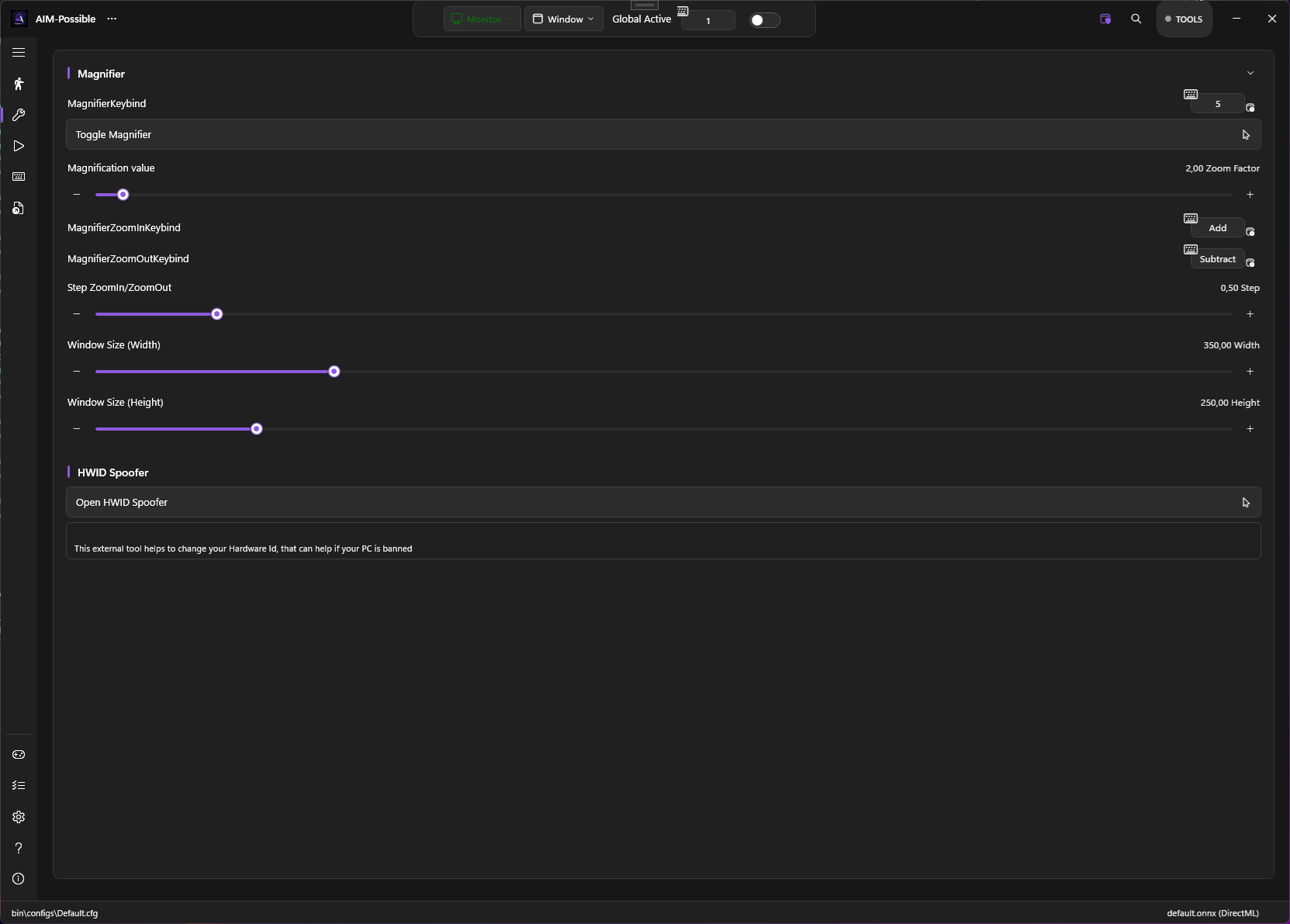
Toggle hotkeys
Most toggles can be flipped by a hotkey — press it in-game to turn the toggle on/off without alt-tabbing.
How to set one:
- Find the toggle you want (e.g. Aim Assist) — next to it is a small keybind chip.
- Click the chip. It switches to “press a key” mode.
- Press the key — or hold a whole chord (e.g.
Ctrl + Q + Gamepad LT) and let go. The chord is captured on release. - Done. Pressing that key/chord now toggles it; the change persists in the config.
Because the chip is a normal keybind, a toggle can sit behind a cross-device chord — so Ctrl + Q + Gamepad LT toggling Aim Assist is exactly as easy to set up as a single key. (To clear a chip, click it and press Delete.)
Toggles with hotkey support:
- Global Active (master toggle)
- Aim Assist
- AutoTrigger
- Anti-Recoil
- FOV
- Dynamic FOV
- Predictions
- EMA Smoothening
- Show Detected Player
- Show Trigger Head Area
- Show AI Confidence
- Show Tracers
- Show Sizes
- Show Debug Overlay
- Show Custom Crosshair
- AutoPlay
- Mapping Active
- Ensure Capture Process Foreground
- Show Captured Area
- Enable Gun Switching Keybind
- Enable HUD OCR
Per-profile hotkeys
Every row of the Aim, Trigger, Mapping, AutoPlay and Anti-Recoil profile lists exposes its own hotkey chip via AKeyChanger. Press the bound key in-game to toggle that profile:
- Aim — each profile’s row key toggles its
Enabledflag; the profile’s own aim key (set in the editor) is what actually engages aiming while held. Several aim profiles can be active at once. - Triggers — toggles the trigger’s
Enabledflag. - Mapping — toggles the mapping profile’s active state (radio across mapping profiles).
- AutoPlay — toggles the profile’s
Enabledflag. - Anti-Recoil — toggles the radio-active profile via
AntiRecoilProfileManager.SetActiveProfile; pressing the same key again on the currently-active profile clears it.
The Tools page works the same way: every tool (built-in or custom) has a start-key chip that runs the tool once — see Dynamic Tools.
Per-row bindings persist under BindingSettings with a profile-type prefix (e.g. ANTIRECOIL_PROFILE_<id>), so they survive config reloads.
Build workflows
Because a key (or chord) can drive a toggle, a profile, a tool, or a whole config, you can compose them into setups that would normally need a separate macro program:
- One key = a whole game setup. Give a config a per-config hotkey (see Quick Config). Loading it swaps in its aim / trigger / anti-recoil profiles, tools and keybinds in a single press — so
F1= “CS2 rifle setup”,F2= “Apex controller setup”. - A chord arms a weapon profile. Bind an aim or anti-recoil profile’s row key to, say,
Gamepad LT + D-Pad Up, so picking that weapon in-game arms the matching recoil pattern. - A tool runs a multi-step sequence. A custom tool is itself an ordered sequence (move, click, send keys, run a program, delay). Put it on a chord and one press fires the whole thing — re-pressing cancels and restarts it.
- A safe “big red button” chord. Use a combination you’d never hit by accident — like
Ctrl + Q + Gamepad LT— for a powerful action (toggle Global Active, switch configs, run a tool), so a stray key can’t set it off. - Stack them. A trigger already mixes OCR conditions + AND/OR keys; combine that with a profile bound to a chord and a config-load hotkey, and one workflow can read the HUD, switch the weapon profile and arm the trigger — all keyed off a single combination.
Tip: keep a chord’s parts on different devices (a keyboard key + a pad button) for combinations the game itself can never produce — maximum flexibility, zero accidental triggers.
Trigger keys
Triggers have two lists of keys per trigger (configured per-trigger in the trigger editor):
- Trigger Keys — keys/buttons that arm the trigger (AND / OR operator)
- Anti-Trigger Keys — keys that block the trigger while held (AND / OR operator)
These can mix keyboard, mouse, and gamepad inputs. The AND/OR operator means LMB AND Shift fires only when both are held; LMB OR Q fires when either is held.
Tips
- Bind master toggles to F-keys. F6 = Global Active, F7 = Aim Assist, etc. Saves alt-tabbing.
- The Dynamic FOV keybind defaults to LMB so it engages on shooting. Change to RMB if you want it on ADS.
Deleteclears a binding. Useful when you’ve bound something to RMB and want to un-bind.- Avoid binding to keys you use for typing. A global keybind on
Wwould trigger every time you type aw.
Implementation note
PowerAim uses a low-level hook installed by Gma.System.MouseKeyHook. This hook runs at the OS level — your bindings work in fullscreen games and during loading screens. The hook also reads gamepad state via SharpDX.XInput, so gamepad button “bindings” come through the same chip without needing an extra hook layer.
Troubleshooting
- Hotkey doesn’t fire in-game — some games sandbox keyboard hooks. Try a different key or run PowerAim as administrator.
- Two keybinds collide — PowerAim doesn’t deduplicate; if
F6is bound to two different toggles, both fire. Re-bind one. - Modifier keys (Shift, Ctrl, Alt) don’t bind — they do, but use the left/right variants (
LShiftvs.RShift). The chip listens for distinct VK codes. - Mouse-5 / Mouse-4 don’t bind — they do, but PowerAim shows them as
XButton1/XButton2.