Anti-Recoil
PowerAim’s anti-recoil system is built around profiles. Each profile bundles one recoil-compensation engine plus optional auto-activation rules (a per-profile hotkey, OCR weapon detection, process filter). Only one profile is active at a time, exactly like a radio button.
The same list / row / hotkey UX you already know from Triggers, Mapping and AutoPlay applies here — just for anti-recoil.
NOTE: The Aim Tools screenshot below shows the old monolithic Anti-Recoil card. The card now hosts the profile list described on this page.
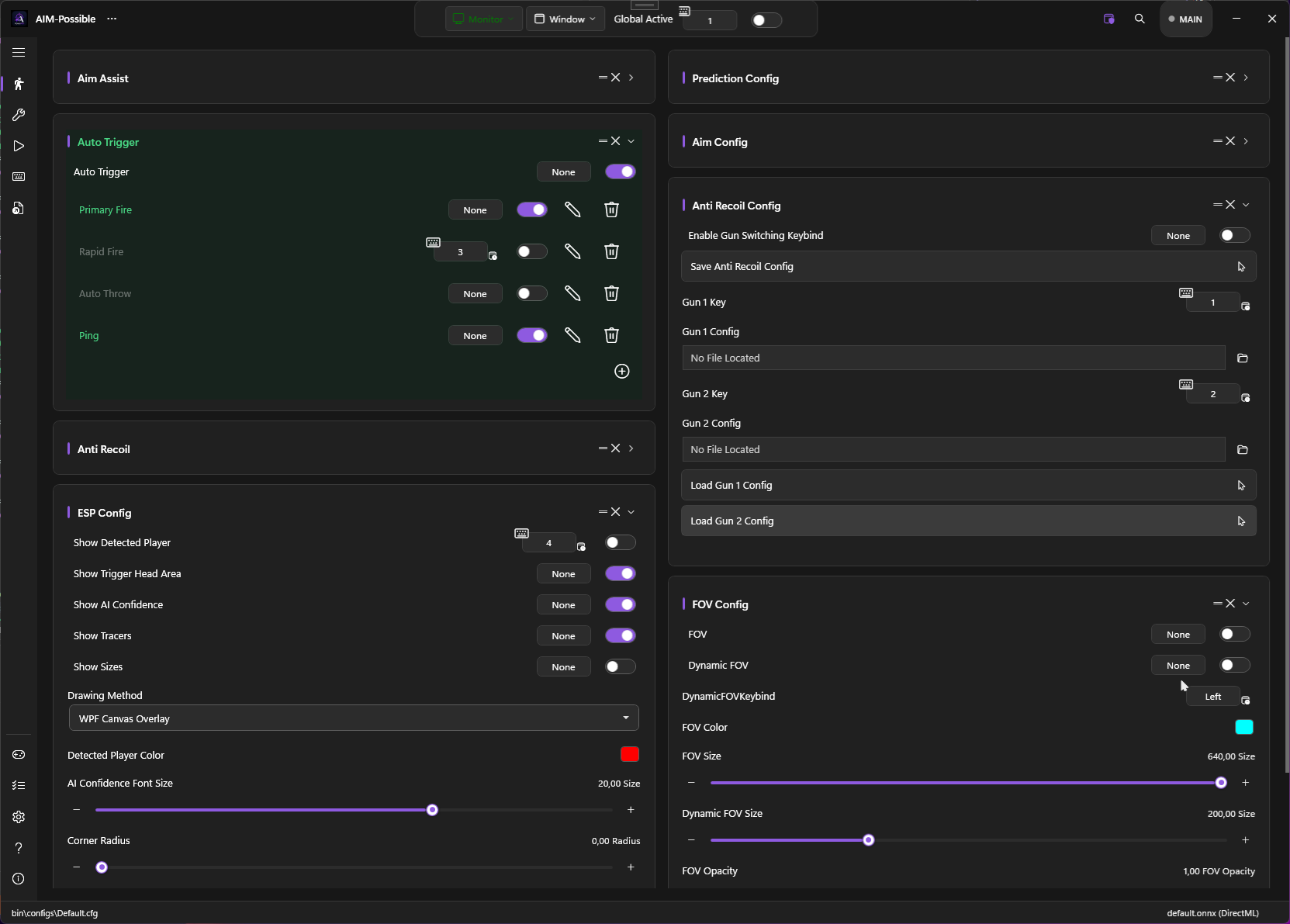
How it fits together
┌──────────────────────────────────────────────────────┐
│  AntiRecoil master toggle  (Aim Tools card header)   │
│                                                      │
│  Profile list                                        │
│   ┌──────────────────────────────────────────────┐   │
│   │ [hotkey] AK-47          — Pattern: AK-47     │   │
│   │ [hotkey] Vandal         — Pattern: Vandal    │   │
│   │ [hotkey] Sniper         — Legacy             │   │
│   │ [hotkey] Auto (BETA)    — Image-based        │   │
│   └──────────────────────────────────────────────┘   │
│  ┌────────────┐  ┌───────────────────┐               │
│  │ + Add      │  │ Recoil patterns…  │               │
│  └────────────┘  └───────────────────┘               │
└──────────────────────────────────────────────────────┘
- The master toggle decides whether any anti-recoil runs. With it off, profiles are visible and selectable but never fire.
- Each row’s toggle is the radio activation — turning one on turns every other one off, same as the AutoPlay / Trigger profile lists.
- Each row’s hotkey chip binds a global key that toggles that row’s active state from in-game.
- The Recoil patterns button opens the pattern library (recording / preview / delete). Pattern-playback profiles reference patterns from that library by name.
The three modes
A profile’s Mode decides which compensation engine runs while you’re firing. Pick one when you create the profile; you can switch modes later from the editor.
| Mode | What it does | Best for |
|---|---|---|
| Legacy | Fixed per-tick X/Y pixel offset applied every FireRate ms while the anti-recoil key is held. The simplest, original mode. |
Quick setups, games where you already know your gun’s recoil values. |
| ImageBased | Phase-correlation on the captured frame estimates crosshair drift and counter-moves accordingly. No per-gun calibration. BETA. | “Generic” coverage when you have no idea which gun you’re holding. |
| PatternPlayback | Replays a named Recoil Pattern sample-by-sample, scaled by PatternStrength. The most accurate mode for known guns. |
Per-weapon spray control once you’ve recorded a pattern. |
All three modes route their mouse output through InputSender.Move, so when Movement Method is set to Gamepad the compensation rides the virtual right stick automatically — no separate toggle.
Creating a profile
- Aim Tools → Anti-Recoil → + to open the editor as an in-window page (Back / Cancel / Save, like the AutoPlay / Trigger editors).
- Give the profile a Name (the OCR / hotkey notice uses this —
"AK-47","Vandal","Sniper"). - Pick a Mode. The editor swaps the mode-specific section below:
- Legacy — sliders for
HoldTime(ms),FireRate(ms),Y RecoilandX Recoil(pixels per tick). - ImageBased — a single
Anti-Recoil Strengthslider (0.0 off → 1.5 over-correct, 0.85 is “natural”). - PatternPlayback — a dropdown of patterns from the library, a
Pattern Strengthslider (0–3,1.0= exact), and a Loop Pattern toggle (see below).
- Legacy — sliders for
- Optionally fill in the activation rules (next section).
- Save.
The profile is now in the list. Toggling its row activates it; pressing its bound hotkey toggles it the same way.
Disabling anti-recoil mid-game
Two card-level keybinds sit next to each other on the Anti-Recoil card:
| Keybind | Default | Effect |
|---|---|---|
AntiRecoilKeybind |
Left mouse button | The “I’m firing” key — anti-recoil compensation only runs while it is held. |
DisableAntiRecoilKeybind |
] (Oem6) |
Panic switch — pressing it force-flips the master AntiRecoil toggle off if it was on, and shows a confirmation toast. |
Use DisableAntiRecoilKeybind to kill all compensation instantly without alt-tabbing — handy when you switch to a weapon you have no profile for, or want to fire manually for a moment.
Per-profile activation rules
Each profile has three independent ways to become active. Configure as many as you like.
Hotkey
Every row has an AKeyChanger chip — bind any keyboard / mouse / gamepad button. Pressing it toggles that profile active (radio behaviour: pressing the same key again on the currently-active profile clears active). Bindings persist under BindingSettings with the prefix ANTIRECOIL_PROFILE_<id>.
The hotkey works regardless of whether the master AntiRecoil toggle is on — useful for pre-selecting a profile while the game is loading.
OCR weapon auto-switch
Tick Auto-switch on OCR (AutoSwitchOnOcr) on the profile, pick an OCR region from OcrSettings.Regions (OcrRegionName), and supply a WeaponMatch substring (e.g. AK, Vandal, Operator). While the master AntiRecoil toggle is on, AntiRecoilProfileManager polls that region (~750 ms) and activates the first profile whose substring (case-insensitive) is contained in the recognised text. A Notifier toast confirms the switch.
AutoSwitchOnOcr is the per-profile master switch for this behaviour — leave it off and the profile is keybind / manual-activation only, even if a region and substring are set.
The editor has an Edit OCR Regions… button that opens the OCR-regions configurator without leaving the editor, so you can define a fresh region (e.g. the weapon-name box on your HUD) and pick it as the source on the same screen.
If you haven’t set up OCR yet, see HUD OCR.
Match Process
Same MatchProcess pattern as Triggers / Mapping / AutoPlay — pipe-separated, supports * / ? wildcards. Empty = active in every process. See Per-game profiles.
Pre-configuring while master is off
The master AntiRecoil toggle gates firing, not selection. You can:
- Leave AntiRecoil off
- Open the profile list, pick a profile (its row toggle goes on, others go off)
- Flip AntiRecoil on later — the selected profile picks up immediately
This is the recommended workflow for setting up per-weapon profiles in a calm menu before jumping into a match.
Recoil pattern library
Patterns recorded in the library are stored under AntiRecoilSettings.Patterns and survive config save/load. PatternPlayback profiles reference them by name — see Recoil Patterns for the recording workflow.
Loop vs. freeze (LoopPattern)
A recorded pattern has a finite number of samples (roughly one mag’s worth). The Loop Pattern toggle (PatternPlayback only, default on) decides what happens when you keep firing past the last sample:
| Loop Pattern | Behaviour past the last sample |
|---|---|
| On (default) | The pattern restarts from the beginning — matches a held spray on a hi-cap / refilled magazine, where the gun keeps kicking. |
| Off | Playback freezes on the last sample, applying no further new compensation. Use for one-shot patterns whose recording already covers the full mag. |
Migration from older configs
Configs that predate the profile system (with UseImageBasedAntiRecoil, UsePatternRecoil, ActivePatternName, HoldTime, etc. at the AntiRecoilSettings root) are migrated automatically on first load via AntiRecoilSettings.MigrateLegacyIfNeeded(). A single profile is seeded that reproduces the old behaviour: its Mode is picked from the active flag, its sliders inherit the old values, and it becomes the active profile. SchemaVersion is bumped to 1 so the migration runs exactly once.
You can edit the seeded profile, rename it, add siblings, or delete it.
Tips
- One profile per weapon you actually use — the OCR substring match makes it self-switching, even mid-match.
- Patterns beat image-based for known guns. Once you’ve recorded a gun’s pattern, replay is rock-solid. Image-based is for the “I’m not sure what I’m holding” case.
PatternStrengthis your per-game knob. Same pattern,0.85for one game and1.05for another, accounts for different in-game sensitivities.- Bind hotkeys to free keys near WASD. You’ll switch profiles a lot during a match if your HUD doesn’t have an OCR-readable weapon name.
Troubleshooting
- Master toggle is on, nothing fires — no profile is active. Check the list: is any row’s toggle on? Check the
ActiveProfileIdJSON field if you suspect a stale value. - OCR auto-switch isn’t activating my profile — confirm OCR is enabled on the Settings page, the region is reading the text (use the on-screen OCR overlay to confirm), and the substring is present in the recognised value. The poll runs every ~750 ms.
- Anti-recoil pulls down too hard — reduce
Pattern Strength(PatternPlayback) orAnti-Recoil Strength(ImageBased), or the X/Y values (Legacy). - Image-based mode adds jitter — lower
Anti-Recoil Strengthor switch to a recorded pattern. The phase-correlation path is sensitive to frame noise. - Recoil rides the virtual stick when I want it on the mouse — that’s Movement Method on Gamepad. Switch back to MouseEvent / SendInput.