Aim Assist
The core PowerAim feature: while an aim key is held, the mouse (or a virtual controller stick) is nudged toward the tracked target inside the FOV.
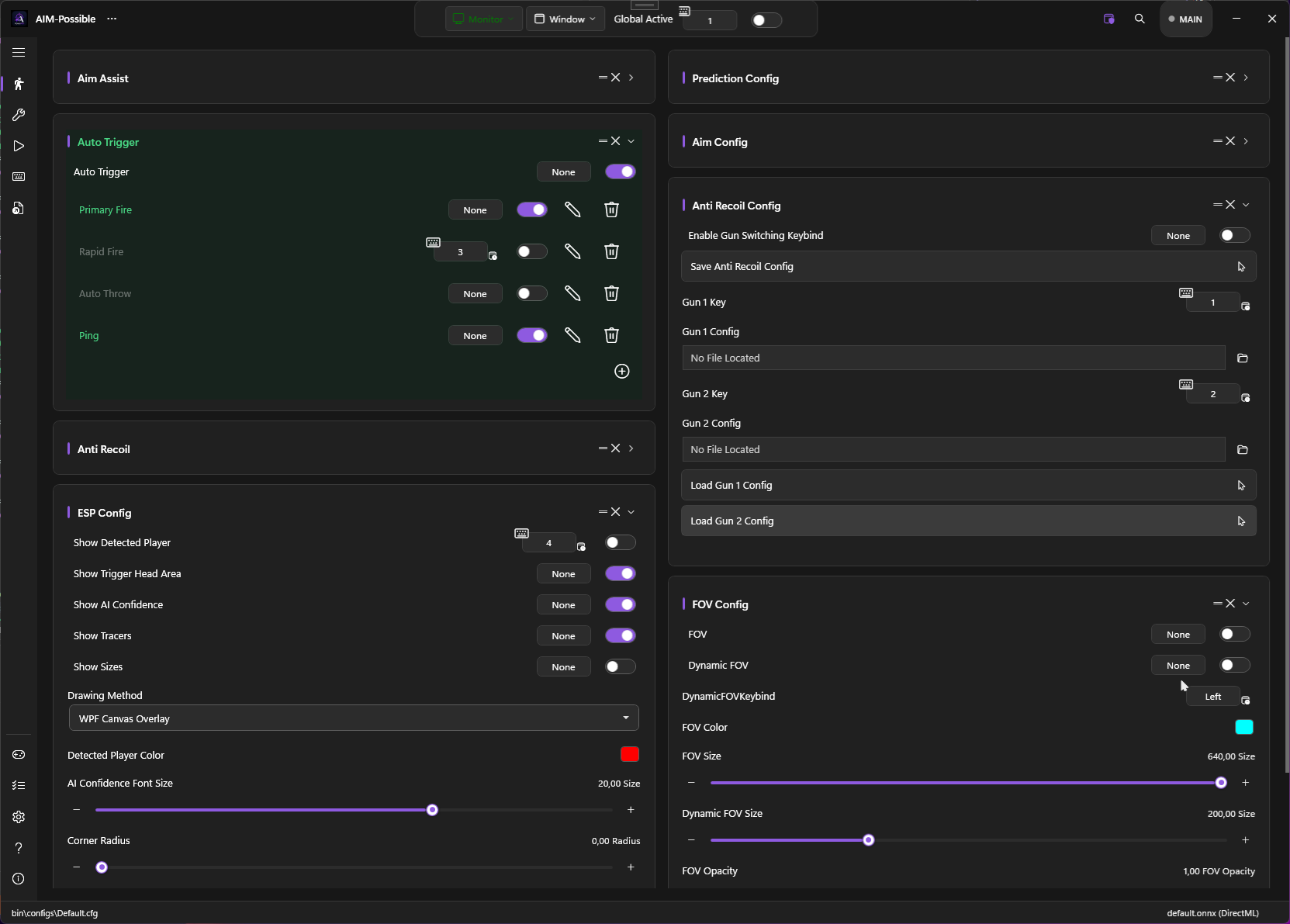
- What it does
- How to enable
- Aim profiles
- Aim region
- Smart aim tuning
- Use controller for aim
- Legacy aim path
- Tips
- Troubleshooting
What it does
Each frame, PowerAim:
- Captures the screen region defined by the FOV (the FOV size drives the scanned region — see FOV Overlay)
- Runs the loaded ONNX model and filters detections by minimum confidence + target classes
- Feeds detections into the smart aim pipeline (default): a SORT-style tracker assigns a stable identity to each target and coasts through dropped frames
- Selects a target with switch hysteresis so the lock doesn’t flip-flop between two enemies
- Smooths the aim point with a 1€ filter and aims at the configured aim region inside the target
- Drives the cursor toward it with a frame-rate-independent damped controller, then sends the delta via the configured mouse input method (or the virtual right stick)
If no aim key is held, steps 3–6 still track but never move the cursor — ESP boxes / FOV ring keep drawing.
How to enable
- Aim Tools → Aim Assist → toggle on
- Make sure Global Active (top-center of the window) is also on — it’s the master kill switch.
- Hold any of the configured Aim Key Bindings in-game.
The aim-key chip supports multiple keys. By default it lists Right Mouse Button + Left Alt — either one arms the aim.
Aim assist can be paused by the HUD state. If the active profile has aim-disengage rules, assist is held off while a HUD region matches — e.g. while a knife is equipped or you’re not scoped — even though the aim key is held.
Aim profiles
Aim is organised into named profiles, exactly like Anti-Recoil — there is no single “global” aim config any more. Each profile bundles the full aim feel (responsiveness, aim region, tracking/smoothing tuning, prediction) plus its own required aim key and optional activation conditions. Several profiles can be active at once — the aim action runs every profile whose aim key is held and whose OCR condition (if any) is met.
- Profile list (Aim section) — add / duplicate / delete profiles; the row toggle enables a profile, and an engaged badge shows which are aiming right now.
- Required aim key — set at the top of the profile editor; a profile can’t aim without one, and PowerAim warns if two profiles share the same key.
- Per-profile row hotkey — bind a key on the list row to flip that profile’s enabled state in-game.
- OCR weapon auto-switch — set an OCR region + a weapon-name substring; the profile engages when the HUD shows that weapon (needs Auto-switch on OCR on the profile). See OCR.
- Process scope — limit auto-activation to specific games via a process-name pattern.
The old global aim key, EMA and prediction settings are migrated onto a seeded Default profile on first load, so nothing is lost.
Presets
The profile editor has a preset dropdown at the top. Picking one overwrites only the tuning fields (name and activation conditions are kept). They’re starting points — fine-tune from there.
| Preset | Feel | Sensitivity | Notable |
|---|---|---|---|
| Balanced (recommended) | Firm, smooth, immediate — start here | 0.45 | 1€ smoothing, tracking off (instant lock) |
| Smooth tracking | Calm, very sticky lock | 0.30 | 1€ smoothing, tracking (SwitchFrames 10) |
| Snappy / flick | Fast convergence, snaps to nearest | 0.75 | No smoothing, no tracking |
| Precise (high DPI) | Very fine and slow, for high-DPI mice | 0.15 | Heavy 1€ standstill smoothing, tracking |
| Humanized | Natural feel with a random aim point | 0.40 | RandomAimPoint on, tracking |
| Legacy (no tracking) | The old single-target path | 0.25 | Smart Aim off |
Aim region
Instead of pixel/percentage offsets, you draw where inside the target to aim with the same visual editor the triggers use for their head area. Open it from the profile, drag the green rectangle over the part of the body you want (head, upper chest…), and save.
- Random aim point — aim at a randomized point inside the region per engagement, for a less robotic feel (the Humanized preset turns this on).
Smart aim tuning
The smart path is layered. An always-on core — aim at the nearest detection and move a proportional fraction of the remaining offset each frame — plus two opt-in, ego-motion-immune layers on top: aim-point smoothing and target tracking. With both off you get exactly the core. (Velocity lead was removed: it’s broken in this closed loop, because the assist’s own view pan looks like target motion. It only returns once ego-motion compensation exists.)
These knobs live on the profile (mirrored to the live AISettings when the profile activates):
| Setting | What it does | Default |
|---|---|---|
| Mouse Sensitivity | Per-60 Hz-frame approach fraction. Higher = snappier, lower = smoother. | 0.45 |
| Aim Deadzone | Crosshair-to-target radius (px) within which the move stops nudging — kills standstill shake. | 3 px |
| Smoothing | Aim-point smoothing mode: None (raw), EMA (cheap fixed), or 1€ (adaptive — heavy at rest, light on flicks). Position-only, never a lead. | 1€ |
| Target tracking | Stable per-enemy identity + switch hysteresis so the aim stays on the same target. Aims only at the raw detection (no velocity), so it can’t drift. Off = simple sticky-nearest. | Off |
| Coast frames | (Tracking) Frames a track may coast through dropped detections before it’s dropped (bridges YOLO drop-outs). | 8 |
| Switch frames | (Tracking) Consecutive frames a challenger must stay better before the lock actually moves. | 6 |
| Switch margin | (Tracking) How much better (fraction) a challenger must be to be considered for a switch. | 0.25 |
| Calibration (px/count) | Set by the calibration wizard (the Calibrate button next to the sensitivity slider): measured screen-pixels per mouse count. Converts the pixel offset into exact mouse counts so the slider feels the same in every game. 0 = uncalibrated (1 px ≈ 1 count). | 0 |
The 1€ mode’s two parameters — min cutoff (1.0, lower = smoother at rest) and beta (0.7, higher = less lag on flicks) — are set per preset and live in the config; the editor exposes the mode itself. Tracking’s association params (IoU threshold 0.2, min hits 3, alpha/beta 0.5/0.2) are fixed internal defaults.
Per-profile aim-disengage
Each profile carries its own OCR-driven disengage rules — conditions that pause aim assist while true (e.g. “knife equipped”, “not scoped”). Edit them from the profile; they’re read for the active profile only. New profiles start empty. See OCR → aim-disengage.
Use controller for aim
The Use Controller for Aim toggle makes the pipeline drive the virtual right stick instead of sending mouse motion — the right setting for games that only accept gamepad input. It’s greyed out until ViGEm is set up; see Gamepad Aim.
Legacy aim path
Turn Smart Aim off (or pick the Legacy preset) to run the original single-target path instead of the tracker. It uses:
- Sticky Aim — holds the current target between frames on a composite score (distance + confidence + size + lock bonus) and only switches when a clearly better candidate appears. Controlled by Sticky Aim Enabled, Sticky Aim Threshold (80 px) and Sticky Aim Max Lock Score (100).
- Movement Path — the curve between current and target position: Bezier (default), Lerp, Exponential, Adaptive (Lerp short / Bezier long), PerlinNoise (organic jitter).
- EMA Smoothening — an exponential moving average on the target position (its own toggle + strength slider).
- Predictions — optional lead on moving targets: Kalman Filter, Shall0e’s Prediction, wisethef0x’s EMA Prediction.
The smart pipeline replaces all of the above with its tracker + 1€ filter + lead-time + damped controller, so those legacy controls only take effect when Smart Aim is off.
Tips
- Pick a preset, then tweak. Smooth tracking is a safe start; Precise if you run a high-DPI mouse; Snappy for fast duels.
- Sensitivity is the main dial. Higher snaps faster but can overshoot — start low and ramp up.
- Standstill shake? Raise the Aim Deadzone a little, or lower the 1€ min cutoff.
- Lock won’t leave a downed enemy? Lower Switch frames / Switch margin so it re-targets faster.
- Want a more human look? Use the Humanized preset (random aim point + slight lead).
Troubleshooting
- No detections in-game? Turn on Show Detected Player (ESP) and verify boxes appear. If not, the model doesn’t recognise what’s on screen — try a different model.
- Aim feels jittery? Raise the Aim Deadzone, keep the 1€ filter on, lower the 1€ min cutoff.
- Aim is too slow / laggy? Raise Mouse Sensitivity, add a little Lead time, raise the 1€ beta.
- Aim drags / stutters? Check Low FPS troubleshooting — the AI loop may be running below 30 FPS.