Settings Overview
Every option on PowerAim’s Settings sidebar page, organized by card.
The Settings page has 9 cards. Some controls are also exposed on the relevant feature page (e.g. crosshair settings appear both here and on the Overlays card) — this page is the authoritative list.
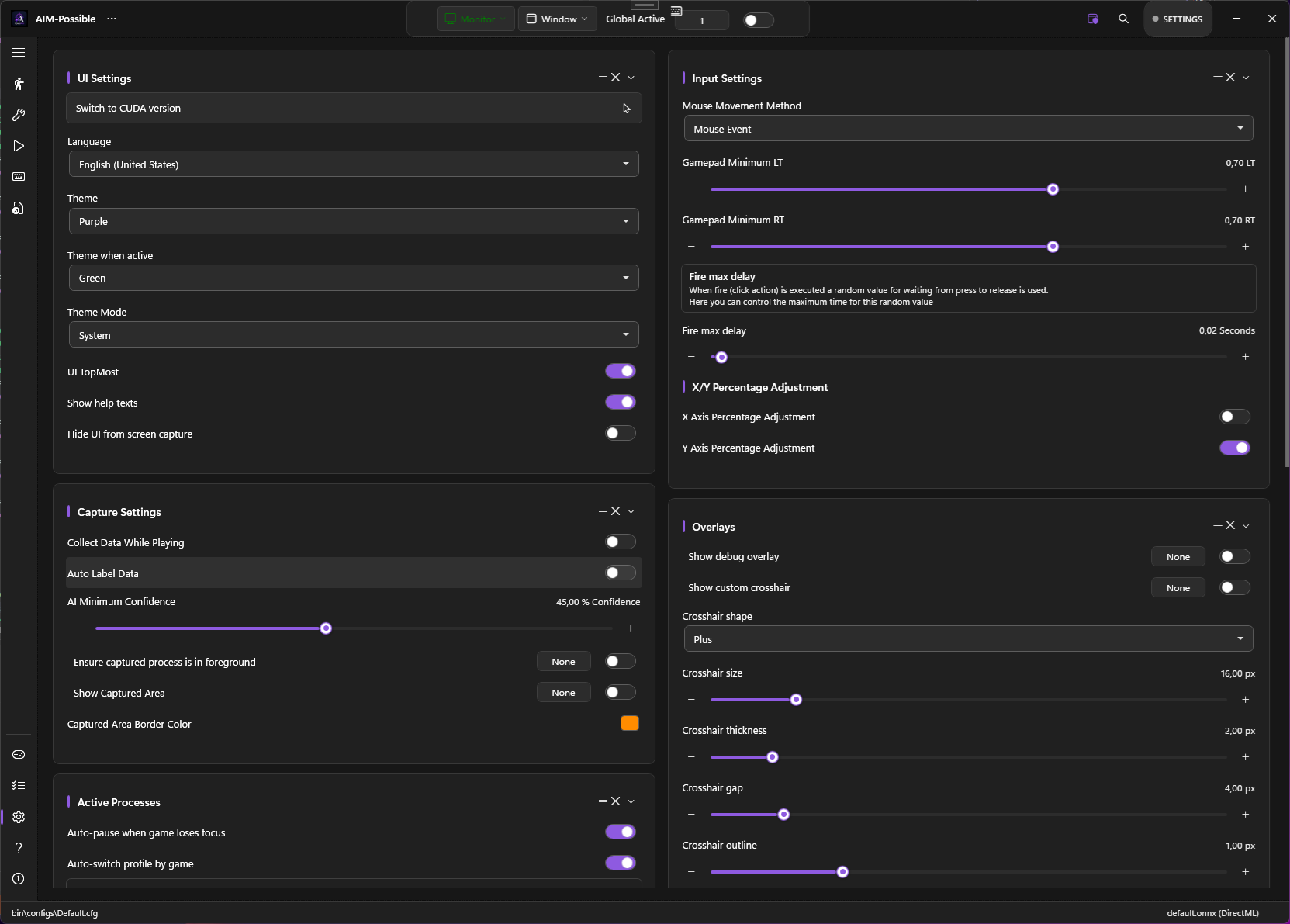
UI Settings
| Setting | What it does | Default |
|---|---|---|
| Switch to DirectML / CUDA | One-click switch between the DirectML and CUDA release builds | — |
| Language | UI language. 9 options: en, de, es, fr, it, ru, tr, uk, zh | System |
| Accent color | Free color picker for the UI accent while idle (Global Active off) | Purple |
| Accent color when active | A separate accent used while Global Active is on | Green |
| Theme Mode | Light / Dark / System-follow | System |
| UI Top Most | Keep PowerAim window above other windows | On |
| Show Help Texts | Show inline tooltips and help labels | On |
| Show toggle notifications | When a toggle is flipped via its global keybind, briefly show an on-screen notice (e.g. “Aim Assist is now on”) | On |
| Hide UI from Capture | Use Win32 capture exclusion so OBS / NVIDIA ShadowPlay can’t see PowerAim’s window | On |
The old Theme / Theme when Active palette dropdowns have been replaced by free accent-color pickers. The 6 former palettes (Purple, Green, etc.) survive as quick-fill swatches inside the picker, so you can still pick them with one click — or choose any custom color. Light / Dark / System mode is unchanged.
In-app color picker
Everywhere PowerAim asks for a color — the two accent colors above, the FOV ring color, the captured-area border color, the detected-player box color, and the crosshair fill / outline colors — it now opens its own HSV color picker instead of the old Windows color dialog. The picker has a saturation/value spectrum, a hue slider, a hex input, and a row of quick-fill swatches.
Disabling Hide UI from Capture is irreversible during the session — PowerAim warns you and asks for confirmation. The default protects you from inadvertently broadcasting PowerAim during a stream.
Capture Settings
| Setting | What it does | Default |
|---|---|---|
| Collect Data While Playing | Saves capture frames as JPEGs to bin\images\ during play (throttled to ~2/sec). See Training Your Own. |
Off |
| Auto Label Data | Also writes a YOLO .txt label file to bin\labels\ for each captured frame, from the current model’s detections |
Off |
| AI Minimum Confidence | Drop detections below this confidence threshold (1–100%) | 45% |
| Ensure Capture Process Foreground | Pause AI loop unless the capture target is the foreground window | Off |
| Show Captured Area | Draw a border around the captured region | On |
| Captured Area Border Color | Color of that border | Accent |
Input Settings
| Setting | What it does | Default |
|---|---|---|
| Mouse Movement Method | MouseEvent / SendInput / LG HUB / Razer / ddxoft. See Mouse Input Methods. | MouseEvent |
| Gamepad Minimum LT | LT pull (0–1) below which the trigger is treated as released | 0.7 |
| Gamepad Minimum RT | RT pull (0–1) below which the trigger is treated as released | 0.7 |
| Fire Max Delay | Maximum seconds to wait after the fire impulse before considering it stuck. 0 = wait forever. | 0.1 |
| X-Axis Percentage Adjustment | Use percentage-based X offset (in addition to pixel offset) | Off |
| Y-Axis Percentage Adjustment | Same for Y | On |
Active Processes
The Auto-Pause and per-game profile-switching card. See Per-game Profiles.
| Setting | What it does | Default |
|---|---|---|
| Auto Pause on Focus Loss | Pause the AI loop while the foreground window is a recognised non-game (browser, terminal) | On |
| Auto Switch Profile | Triggers / mapping profiles with a MatchProcess pattern only activate while the foreground process matches |
On |
| Game Process Patterns | Comma-separated whitelist of process names that count as “games” | empty |
Overlays
See Crosshair Overlay and Debug Overlay.
| Setting | What it does | Default |
|---|---|---|
| Show Debug Overlay | Topmost diagnostic panel | Off |
| Show sent-input visualizer | Inside the debug overlay, show a live keyboard + mouse + controller diagram of the input PowerAim is sending. See Debug Overlay. | Off |
| Show Custom Crosshair | Topmost custom crosshair | Off |
| Crosshair Shape | Dot / Cross / Plus / Circle / CircleDot / T | Plus |
| Crosshair Size | 4–80 px | 16 |
| Crosshair Thickness | 1–10 px | 2 |
| Crosshair Gap | 0–30 px (Plus + Cross only) | 4 |
| Crosshair Outline | 0–6 px | 1 |
Stats
See Session Stats. Shows live FPS / inference time / detections / shots / frames / tactical actions / session duration. Includes:
- Reset Stats — clears session counters
- Adaptive Kalman Lead — auto-adapt the Kalman lead time to measured target velocity
HUD OCR
See OCR.
| Setting | What it does | Default |
|---|---|---|
| Enable HUD OCR | Master toggle | Off |
| OCR Interval | 100–5000 ms | 500 |
| Configure OCR Regions | Opens the per-region editor | — |
Replay Buffer
See Replay Buffer.
| Setting | What it does | Default |
|---|---|---|
| Record Rolling Buffer | Master toggle | Off |
| Buffer Length | 1–30 seconds | 3 |
| JPEG Quality | 10–100 | 70 |
| Save Replay Buffer | Flush to %LocalAppData%\PowerAim\replays\<timestamp>\ |
— |
| Clear Buffer | Drop everything | — |
AutoPlay Learning
See AutoPlay.
| Setting | What it does | Default |
|---|---|---|
| Record Playstyle | While on, samples your input state every SampleInterval ms |
Off |
| Apply Learned Bias | Bias AutoPlay’s selector toward the recorded preference | Off |
| Bias Strength | 0 (ignore) – 1 (dominate) | 0.5 |
| Sample Interval | 50–1000 ms | 150 |
| Save / Load / Clear Model | Persist or reset the JSON state | — |
Customizing the layout
The cards on every page can be rearranged and pruned to fit how you work — the layout is saved per page and restored on next launch.
- Drag to reorder. Each card shows a small drag handle near its top-right corner. Drag it to move the card within its column; on two-column pages you can also drag a card across to the other column.
- Hide a card. Next to the drag handle is a small × that hides the card.
- Restore hidden cards. When at least one card on the current page is hidden, a floating pill (e.g. “3 hidden sections”) appears in the bottom-right corner. Click it for a flyout listing the hidden cards; click any entry to bring it back.
Instant search
Press Ctrl+F anywhere in the app to open a search box. It indexes the labels of settings and section headers across the whole window — toggles, sliders, keybinds, color pickers, buttons, and section titles, plus their help/tooltip text — and matches as you type.
Pick a result (click it or press Enter for the first match) and PowerAim switches to the right page, scrolls the control into view, and briefly flashes its border so your eye lands on it.
Hotkey safeguards
Two options change how global keybinds behave:
| Setting | What it does | Default |
|---|---|---|
| Show toggle notifications | When a toggle is flipped via its global keybind, briefly show an on-screen notice of the new on/off state. (Also listed under UI Settings.) | On |
| Require Global Active for keybinds | Global keybinds (toggle hotkeys, trigger / mapping enable hotkeys, model & config switch hotkeys, …) only fire while Global Active is on. The Global Active hotkey itself is always exempt so you can switch back on. | On |
Related controls (outside the Settings cards)
A few inference-related controls live elsewhere in the app rather than on the Settings page, but are worth knowing about here:
| Control | Where | What it does |
|---|---|---|
| Image Size Override | Models page | Slider (192–1280 px) that sets the runtime square input size. Only meaningful for dynamic-shape ONNX models — fixed-size models snap to their declared dimension. Bound to SliderSettings.ImageSize. See Training Your Own. |
| GPU device picker | Title-bar pill (“GPU”) | Lists the DXGI adapters PowerAim detects and lets you pick which one runs ONNX inference (AISettings.InferenceGpuDeviceId). Lets you keep inference off the GPU the game runs on. The model reloads on the new device when you switch. |
The Switch to DirectML / CUDA button (UI Settings, above) swaps the whole app between the two release builds from inside it: it finds the matching release, downloads the other build, and updates in place via the same updater — your config is preserved.